Coffee Machine Computer Connection: Master Your Smart Brew
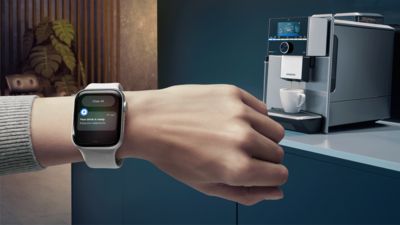
While it might seem like a futuristic concept, many modern coffee machines can indeed connect to a computer or related smart devices. These connections aren't typically for daily brewing commands directly from your desktop, but rather for a range of functionalities including firmware updates, diagnostics, and enabling app-based control for personalized brewing and smart home integration. The specific method and purpose of connection depend heavily on your coffee machine's design and features.
The Core Reasons Your Coffee Machine Might Connect to a Computer
In homes and offices across the United States, technology has made its way into almost every appliance, including our beloved coffee makers. Understanding why your coffee machine might need a digital tether can help you unlock its full potential.
Firmware Updates
Just like your smartphone or computer, many advanced coffee machines run on software called firmware. Manufacturers periodically release updates to improve performance, fix bugs, or add new features. Connecting to a computer (often via USB) allows you to download and install these updates, ensuring your machine is running optimally and has the latest capabilities.
Diagnostics and Troubleshooting
When something goes wrong with a sophisticated coffee machine, connecting it to a computer can provide valuable diagnostic information. Specialized software can read error codes, identify failing components, or monitor operational data, assisting both users and service technicians in pinpointing and resolving issues more quickly.
Smart Control and Customization
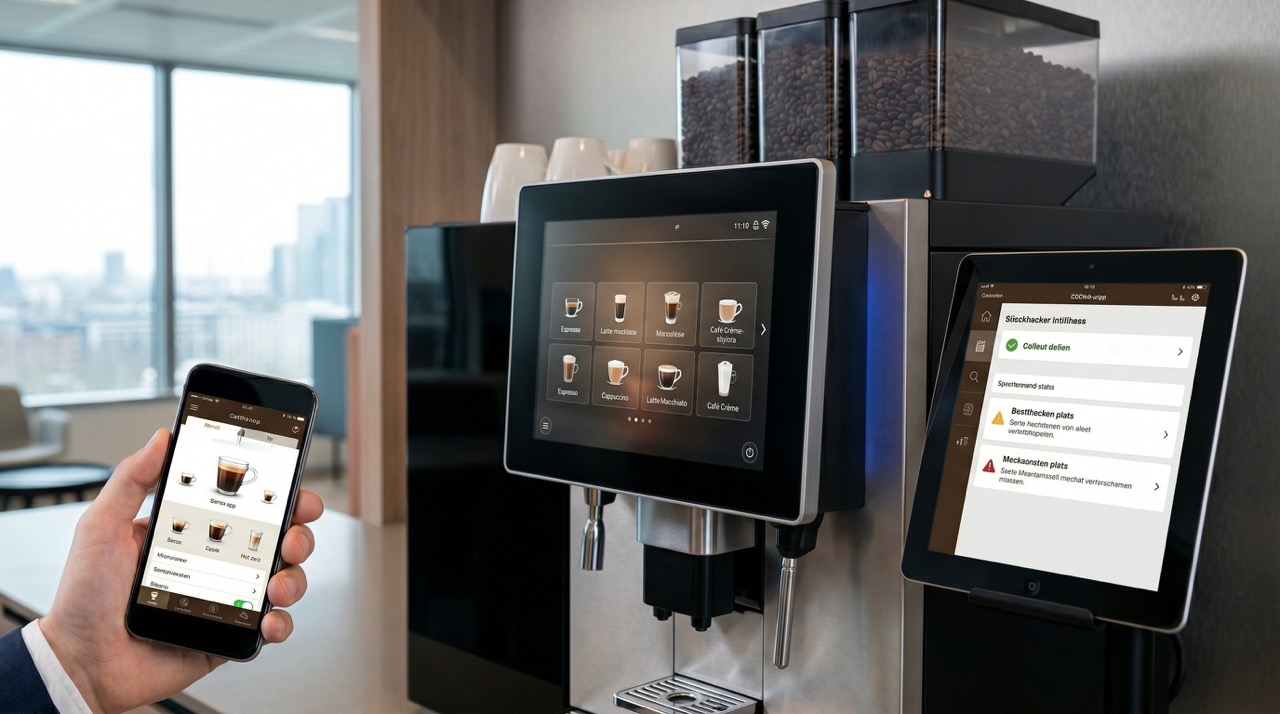
This is where wireless connections shine. Many smart coffee machines use Wi-Fi or Bluetooth to connect to a mobile app (which often syncs with a cloud service accessible from a computer or another smart device). This enables features like:
- Remote brewing: Starting your coffee from bed or on your commute.
- Customization: Adjusting brew strength, temperature, and volume with precision.
- Scheduling: Setting routines for your morning cup.
- Personalized profiles: Saving preferred settings for different users or coffee types.
Data Collection (Less Common for Home Users)
In some commercial or highly specialized settings, coffee machines might connect to computers to collect data on usage patterns, bean consumption, or machine performance. For the average American household, this feature is less prevalent but speaks to the broader capabilities of connected appliances.
Connection Methods: Wired and Wireless Pathways
From bustling urban apartments to quiet suburban kitchens across America, understanding how your coffee machine can interface with your digital world is key to unlocking its full potential. There are two primary ways coffee machines establish these connections: wired and wireless.

USB Connections: For Essential Maintenance
Prerequisites:
- A coffee machine with a USB port (usually a standard USB-A or micro-USB port, often hidden).
- A compatible USB cable.
- A computer (Windows PC or Mac) with an available USB port.
- The manufacturer's specific software or drivers, usually available on their support website.
- An internet connection on your computer to download necessary files.
Steps:
- Locate the USB Port: On some machines, this port might be behind a service panel, under a rubber flap, or in a less obvious spot. Consult your machine's user manual.
- Download Software/Drivers: Visit the coffee machine manufacturer's official support website. Search for your specific model and download any required firmware update tools, diagnostic software, or USB drivers. Install them on your computer.
- Prepare Your Machine: Turn off your coffee machine and unplug it from the power outlet. This is often a safety precaution before connecting via USB.
- Connect the Cable: Plug one end of the USB cable into your coffee machine and the other into your computer.
- Follow Software Instructions: Power on your coffee machine (if instructed by the software). Open the manufacturer's software on your computer. It should guide you through the process of detecting the machine, checking for updates, or initiating diagnostics.
Signs of Success:
- The software on your computer recognizes your coffee machine.
- Firmware update progresses without errors.
- Diagnostic reports are generated or displayed.
What to Do When the Process Fails:
- Check Cable: Try a different USB cable.
- Restart Everything: Reboot your computer and power cycle your coffee machine.
- Reinstall Drivers: Uninstall and reinstall the manufacturer's software/drivers.
- Consult Manual: Reread your coffee machine's manual for specific connection instructions.
- Contact Support: Reach out to the manufacturer's customer support.
Wi-Fi Connections: The Smart Home Gateway
Prerequisites:
- A Wi-Fi enabled coffee machine.
- A stable 2.4 GHz Wi-Fi network (many smart devices don't support 5 GHz).
- A smartphone or tablet with the manufacturer's dedicated mobile app installed.
- An internet connection to download the app and register your device.
Steps:
- Download the App: Search for your coffee machine manufacturer's official app in your smartphone's app store (App Store for iOS, Google Play Store for Android).
- Create Account & Register: Open the app, create an account, and follow the in-app instructions to register your coffee machine. This usually involves selecting your model.
- Activate Pairing Mode: On your coffee machine, follow the manual's instructions to put it into Wi-Fi pairing mode. This often involves pressing and holding a specific button or sequence of buttons until an indicator light flashes.
- Connect via App: In the app, select the "Add Device" or "Connect Coffee Machine" option. The app will guide you through connecting to your home Wi-Fi network by selecting your network name (SSID) and entering the password.
- Complete Setup: Once connected, the app will confirm the successful pairing. You can then name your machine and begin customizing settings.
Signs of Success:
- The coffee machine's Wi-Fi indicator light is solid.
- The app confirms the device is connected and online.
- You can control the machine remotely through the app.
What to Do When the Process Fails:
- Wi-Fi Band: Ensure your router is broadcasting a 2.4 GHz signal or your phone is connected to it during setup.
- Proximity: Move the coffee machine closer to your Wi-Fi router.
- Router Reboot: Restart your home router.
- App Permissions: Check if the app has necessary permissions (e.g., location services) on your phone.
- Reset Machine: Factory reset your coffee machine's Wi-Fi settings (refer to manual).
- Network Congestion: Try connecting during off-peak hours or reduce other network traffic.
Bluetooth Connections: Localized Control
Prerequisites:
- A Bluetooth-enabled coffee machine.
- A smartphone or tablet with Bluetooth enabled and the manufacturer's dedicated mobile app installed.
- Proximity: Bluetooth connections require the controlling device to be within a few feet of the coffee machine.
Steps:
- Download the App: Get the manufacturer's app from your smartphone's app store.
- Enable Bluetooth: Ensure Bluetooth is turned on both your smartphone and the coffee machine (refer to machine manual for its Bluetooth activation).
- Activate Pairing Mode: Put your coffee machine into Bluetooth pairing mode, typically indicated by a flashing light.
- Pair via App: Open the app and select "Add Device." The app will scan for nearby Bluetooth devices. Select your coffee machine from the list. Some machines might require a PIN, usually displayed on the machine or in its manual.
- Confirm Connection: The app will confirm the successful pairing, and the coffee machine's Bluetooth indicator light will typically become solid.
Signs of Success:
- The app indicates the coffee machine is connected.
- You can control the machine from your smartphone when within range.
What to Do When the Process Fails:
- Proximity: Ensure your phone is very close to the coffee machine.
- Other Devices: Disconnect other Bluetooth devices from your phone to avoid interference.
- Reboot: Restart your phone and put the coffee machine back into pairing mode.
- Forget Device: On your phone, "forget" or "unpair" the coffee machine from your Bluetooth settings and try pairing again through the app.
Setting Up Your Coffee Machine's Software and Apps
Just like setting up a new smart device in a typical American household, getting your coffee machine's digital brain in sync with your computer or smartphone requires a few straightforward steps. This ensures seamless communication and unlocks all the smart features.

Finding the Right Software/App
Always start by looking for official resources.
- Manufacturer's Website: For computer-based software or drivers, the manufacturer's official support page for your specific coffee machine model is the most reliable source. Avoid third-party download sites.
- App Stores: For mobile apps, search the Apple App Store (for iOS devices like iPhones and iPads) or the Google Play Store (for Android devices). Use the exact name of the manufacturer or the machine model.
Installation Process (Drivers, Mobile App)
- For Computer Software/Drivers:
- Locate the downloaded file (usually an .exe for Windows or .dmg for Mac).
- Double-click the file to start the installation wizard.
- Follow the on-screen prompts, agreeing to terms and conditions, and choosing an installation location if prompted.
- Restart your computer if the installer requests it.
- For Mobile Apps:
- Tap the "Install" or "Get" button in the app store.
- Allow the app to download and install automatically.
- Grant any necessary permissions (e.g., location, Bluetooth, Wi-Fi access) when prompted during the first launch.
Account Creation and Device Registration
Most smart coffee machine apps will require you to create an account. This links your machine to your personal profile, allowing for saved preferences, remote access, and sometimes even cloud-based recipe storage.
- Open the App: Launch the newly installed mobile app.
- Sign Up/Log In: If you're a new user, select "Sign Up" or "Create Account" and follow the prompts to enter your email, create a password, and agree to privacy policies. If you already have an account with the manufacturer, simply log in.
- Add Your Device: Within the app, there will typically be an option like "Add Device," "Pair Machine," or a "+" icon. Follow the guided steps to connect your specific coffee machine model, which will often involve putting the machine into a pairing mode.
Practical Applications: What You Can Do Once Connected
For many coffee enthusiasts across the U.S., connecting their machine to a computer or smartphone isn't just a novelty—it's about enhancing their daily ritual and gaining unprecedented control over their brew. Here's a look at what you can typically achieve.

Customizing Brewing Parameters
This is perhaps the most exciting benefit for coffee aficionados. Connected machines often allow you to fine-tune aspects of your coffee that manual machines can't:
- Temperature: Adjust the water temperature for different roasts or brewing methods.
- Strength/Concentration: Control the amount of coffee used or the brew time to achieve your desired strength.
- Volume: Precisely select the volume of your drink.
- Grind Settings: On machines with integrated grinders, you might be able to adjust grind size digitally.
- Milk Froth Texture: For espresso machines, some apps allow you to customize milk texture and temperature.
Scheduling Brews
Imagine waking up to the aroma of freshly brewed coffee every morning, perfectly timed. With a connected machine, you can:
- Set Daily Routines: Program your coffee maker to start at a specific time each day.
- One-Time Schedules: Schedule a single brew for a special occasion or an afternoon pick-me-up.
- "Wake Up" Brews: Some machines integrate with smart alarms, starting the brewing process when your alarm goes off.
Receiving Maintenance Alerts
Connected machines can be proactive about their own health. The app can send you notifications for:
- Low Water/Bean Levels: Alerting you when it's time to refill.
- Descaling Reminders: Prompting you to clean your machine to prevent mineral buildup.
- Filter Replacements: Notifying you when a water filter needs changing.
- Error Codes: Explaining any internal issues the machine detects.
Downloading New Recipes/Profiles
Some manufacturers offer a library of recipes or brewing profiles that you can download directly to your machine via the app. This allows you to experiment with different coffee styles, blend types, or even seasonal drinks crafted by experts. You might also be able to share your own custom profiles with others.
Remote Control
The convenience of remote control is a major draw. Whether you're still in bed, working from another room, or heading home, you can:
- Start a Brew: Initiate the brewing process from anywhere with an internet connection.
- Check Machine Status: See if the machine is on, if it has water, or if a brew is complete.
- Turn Off/On: Power your machine down or activate it remotely.
Common Issues and Troubleshooting Tips
Even with the best intentions, connecting smart home devices, including coffee machines, can sometimes hit a snag for users in the United States. Don't worry, many issues are easily resolved with a few common troubleshooting steps.

Connectivity Problems (Wi-Fi, Bluetooth, USB)
- Wi-Fi:
- "No Internet" or "Disconnected": Check your home router. Is it on? Is the internet working for other devices?
- 2.4 GHz vs. 5 GHz: Many smart coffee machines only support the 2.4 GHz Wi-Fi band. Ensure your phone is connected to this band during setup, and if your router combines them, you might need to temporarily separate them or ensure your router prioritizes 2.4 GHz for new devices.
- Signal Strength: Move the coffee machine closer to the router. Obstacles like thick walls can interfere.
- Network Congestion: Too many devices on one Wi-Fi network can cause issues. Try disconnecting other devices temporarily.
- Bluetooth:
- Range: Bluetooth is short-range. Ensure your phone/computer is within 10-30 feet of the coffee machine.
- Interference: Other Bluetooth devices or strong electromagnetic signals can cause interference. Try disconnecting other Bluetooth devices.
- USB:
- Cable Integrity: Use a known good quality USB cable. Some cables are "charge-only" and don't transfer data.
- Driver Issues: Ensure the correct USB drivers for your specific coffee machine model are installed and up to date on your computer. Check your computer's Device Manager (Windows) or System Information (Mac) for unrecognized devices.
Software/App Glitches
- App Crashing/Freezing: Close the app completely and reopen it. If that doesn't work, clear the app's cache (in your phone settings) or uninstall and reinstall the app.
- Machine Unresponsive in App: Try restarting your coffee machine. Ensure the app is updated to its latest version.
- Firmware Update Failure: Do not unplug the machine or turn off your computer during a firmware update. If it fails, restart the entire process, double-check internet connection, and contact support if persistent.
Compatibility Issues (OS, Machine Model)
- Outdated Operating System: Ensure your smartphone or computer's operating system (iOS, Android, Windows, macOS) meets the minimum requirements specified by the coffee machine manufacturer's app or software.
- Wrong App/Software: Double-check that you've downloaded the app or software specifically designed for your coffee machine model. Manufacturers often have multiple apps for different product lines.
- Firmware Mismatch: Sometimes, a new app version requires a specific firmware version on the machine. Check the manufacturer's support page for compatibility matrices.
Security Concerns (Brief Overview)
- Network Security: Always use a strong, unique password for your home Wi-Fi network. Enable WPA2 or WPA3 encryption.
- App Security: Use a strong, unique password for your coffee machine app account. Enable two-factor authentication if available.
- Firmware Updates: Only download firmware from the manufacturer's official website to avoid installing malicious software.
- Privacy: Be aware of what data the app collects (e.g., usage patterns). Review the manufacturer's privacy policy. While the risk of a coffee machine being a major security vulnerability is generally low, it's good practice to be mindful of all connected devices.
Limitations and When a Connection Isn't Necessary
While the allure of a smart home is strong for many Americans, it's important to recognize that not every coffee machine needs to be digitally tethered, and some simply aren't designed for it. Understanding these limitations helps manage expectations.

Older/Basic Models
The vast majority of coffee machines, especially those purchased several years ago or basic drip coffee makers, do not have any connectivity features. They are designed for simple, manual operation, and there's no way to add smart capabilities to them. Attempting to connect these to a computer would be fruitless as they lack the necessary hardware and software.
Privacy Concerns
Connecting any device to your home network or a cloud service introduces potential privacy considerations. While a coffee machine is unlikely to pose a significant threat, some users might be uncomfortable with their brewing habits being tracked or data being collected, even if anonymized. For those who prioritize privacy above all else, a non-connected machine is the simplest choice.
Over-reliance on Tech
For some, the constant need for an app, a Wi-Fi signal, or a firmware update might detract from the simple pleasure of making coffee. If the technology adds more frustration than convenience, or if you prefer a simpler routine without digital dependencies, a smart coffee machine might not be the best fit. What happens if the internet goes down, or the app server is offline? Can you still make coffee? Most smart machines have manual overrides, but it's a consideration.
Simplicity Preference
Many coffee lovers simply prefer the tactile experience of manually operating their machine, grinding beans, measuring water, and pressing buttons directly. For them, the added layer of digital control might feel unnecessary or even cumbersome, preferring a straightforward, analogue approach to their daily brew.
Key Takeaways
- Coffee machines connect to computers primarily for firmware updates, diagnostics, and smart control via apps.
- USB connections are typically used for wired maintenance tasks like firmware updates.
- Wi-Fi and Bluetooth enable wireless control through mobile apps for features like remote brewing, scheduling, and customization.
- Setting up involves downloading manufacturer-specific software/apps and often creating an account.
- Connected features offer enhanced convenience and personalization for your coffee experience.
- Troubleshooting often involves checking connectivity, app functionality, and compatibility.
- Many basic or older coffee machines do not have connectivity features, and for some users, the added tech might be unnecessary or undesirable due to simplicity or privacy preferences.
FAQs
Do all coffee machines connect to a computer?
No, most basic or older coffee machines do not have any form of computer connectivity. Only modern, "smart" coffee makers are designed with USB, Wi-Fi, or Bluetooth capabilities.
Is it safe to connect my coffee machine to my home network?
Generally, yes. However, like any smart device, it's important to use a strong, unique Wi-Fi password, enable network encryption (WPA2/WPA3), and keep your coffee machine's firmware updated to mitigate potential security risks. Use strong passwords for any associated apps.
Can I brew coffee directly from my computer?
In most cases, you'll use a mobile app on your smartphone or tablet to control a Wi-Fi or Bluetooth-connected coffee machine. While some manufacturers might offer desktop applications for advanced settings or diagnostics, direct brewing commands from a computer are less common than app-based control.
What kind of "diagnostics" can a connected coffee machine perform?
Connected coffee machines can often report error codes, sensor data (like water temperature or pressure), component status (e.g., pump, heater), and usage statistics. This data helps identify performance issues or potential malfunctions, assisting troubleshooting.
Will connecting my coffee machine void its warranty?
No, connecting your coffee machine via manufacturer-provided USB ports, Wi-Fi, or Bluetooth, and using official software/apps as intended, will not void its warranty. However, using third-party software or attempting unauthorized modifications could. Always follow the manufacturer's instructions.
Next Action
If you're considering a connected coffee machine, first assess your needs: Do you value remote control, precise customization, or scheduling? Then, research models from reputable brands, checking their connectivity options (Wi-Fi, Bluetooth, USB), associated app features, and user reviews regarding ease of setup and reliability. Ensure your home network meets any specified requirements.